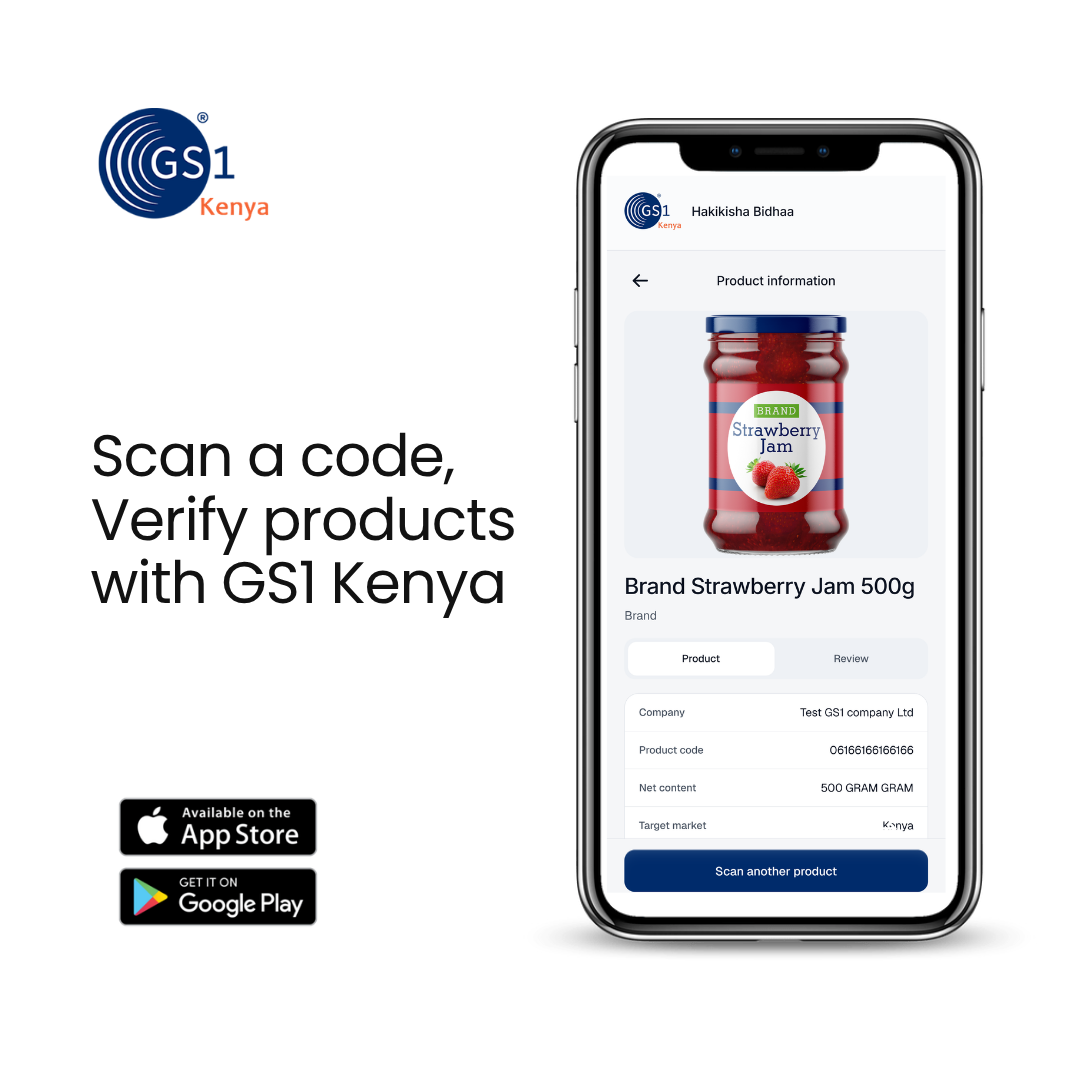
Overview
Hakikisha Bidhaa lets people in Kenya scan a barcode and read the GS1 record. Members can also grade how well that barcode will scan.
The brief
GS1 Kenya needed one phone app that does two jobs. A shopper or an inspector should be able to point a camera at a pack and see the national product record: brand, company, size, category, and market. No account. A GS1 member should be able to photograph a printed barcode and get a straight answer on whether a scanner will struggle with it.
Hakikisha is Swahili for verify. The product is Hakikisha Bidhaa. The print check has its own name inside the app, Barveri. We designed and built the iOS and Android app in Expo, on top of GS1 Kenya's product catalogue.
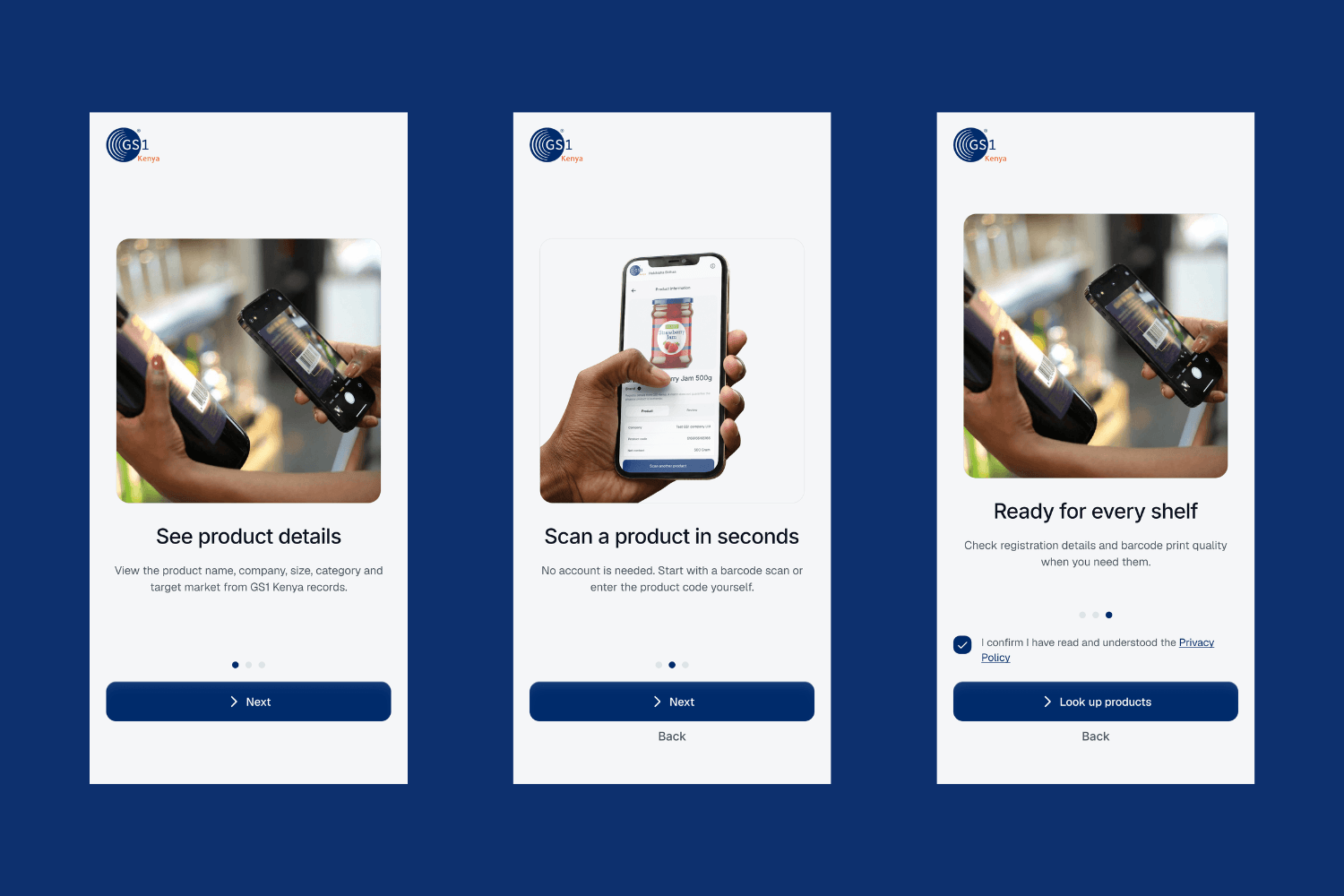
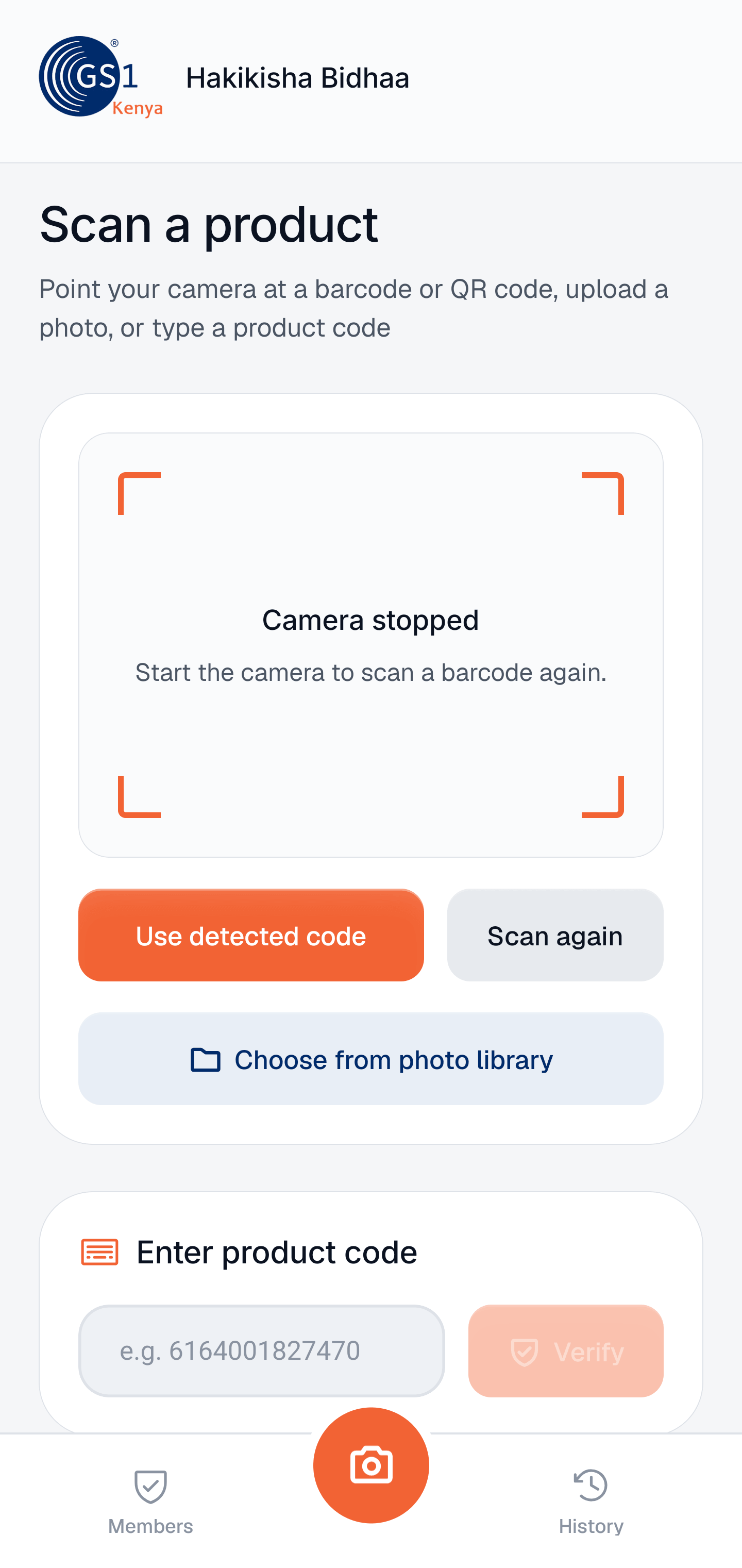
Two jobs, one tab bar
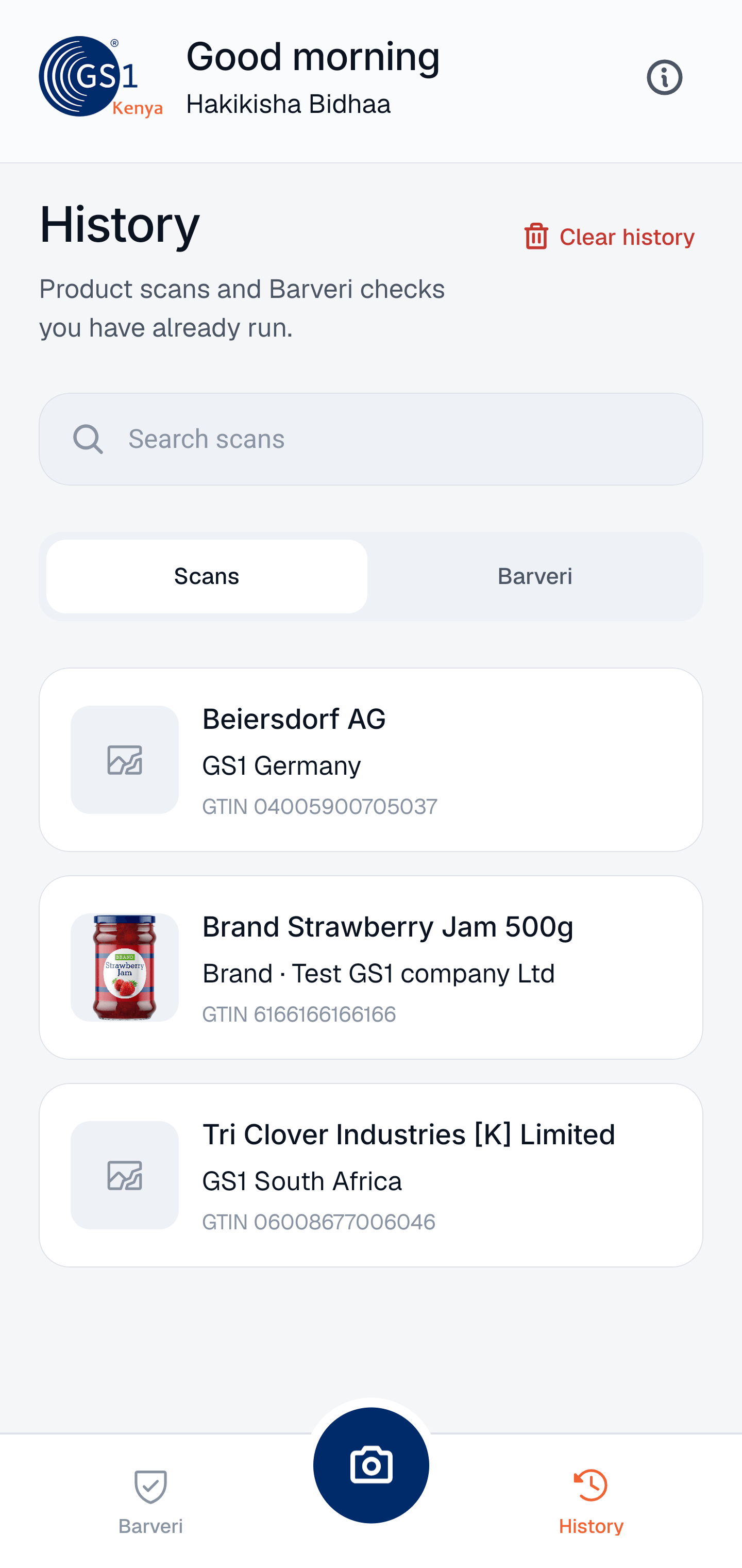
Citizens and members don't share a form. Scan sits in the middle of the tab bar. You can use the live camera, pick a photo from the library, or type a product code of 8 to 14 digits. Barveri is on the left and never asks for a code. History is on the right, with product scans and print checks kept apart so a grade doesn't land in the same list as a lookup.
A citizen is trying to identify a pack in a shop. A member is trying to catch a quiet zone, a low-contrast print, or glare before a batch of labels goes out. One screen for both would have made each job slower.
Reading the product
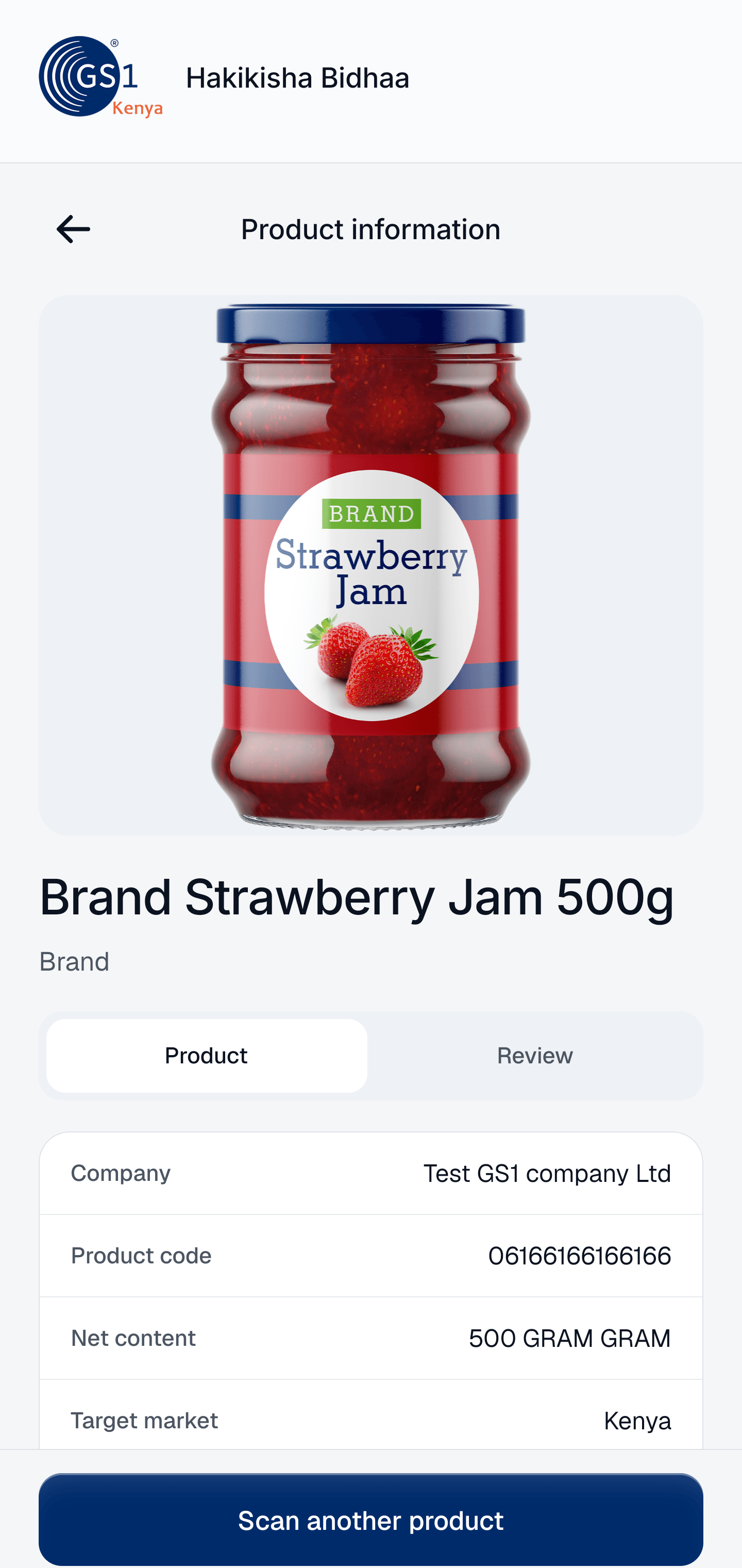
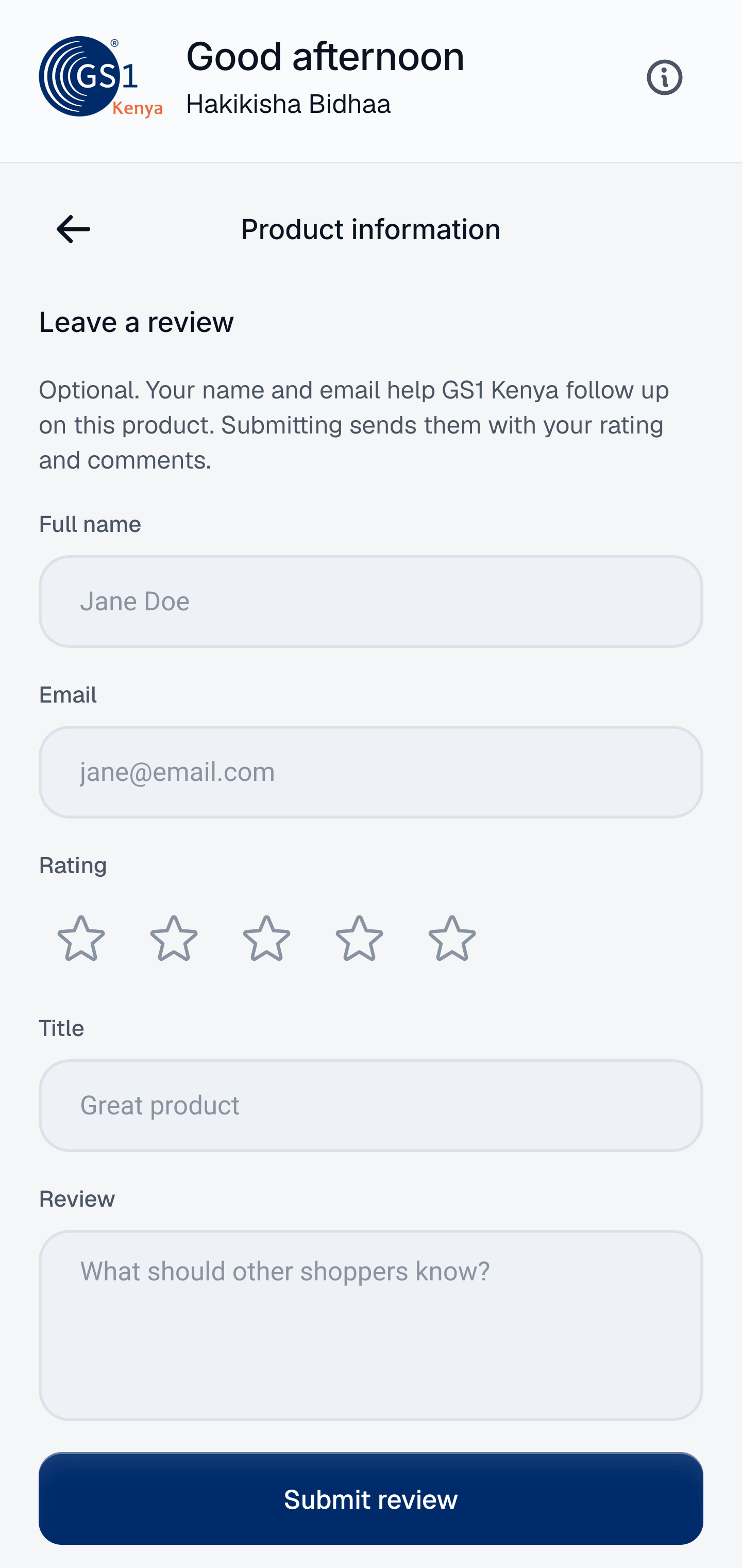
A good scan opens a product sheet from GS1 Kenya records. If the catalogue has a pack shot, that comes first, then company, product code, net content, target market, category, and brand. Product and Review are two tabs. Under the details you can open nutrition, packaging and recycling, certificates, media, the company behind the brand, and a short survey. People submit reviews in the app. They show up once they're approved.
If a code is licensed but has no product sheet, you still get the company: name, address, licensing organisation, and licence status. If the code isn't in the registry, that's a normal result. The screen says it wasn't found and offers another scan. A match confirms the GS1 record. It doesn't tell you the pack in your hand is genuine.
Barveri
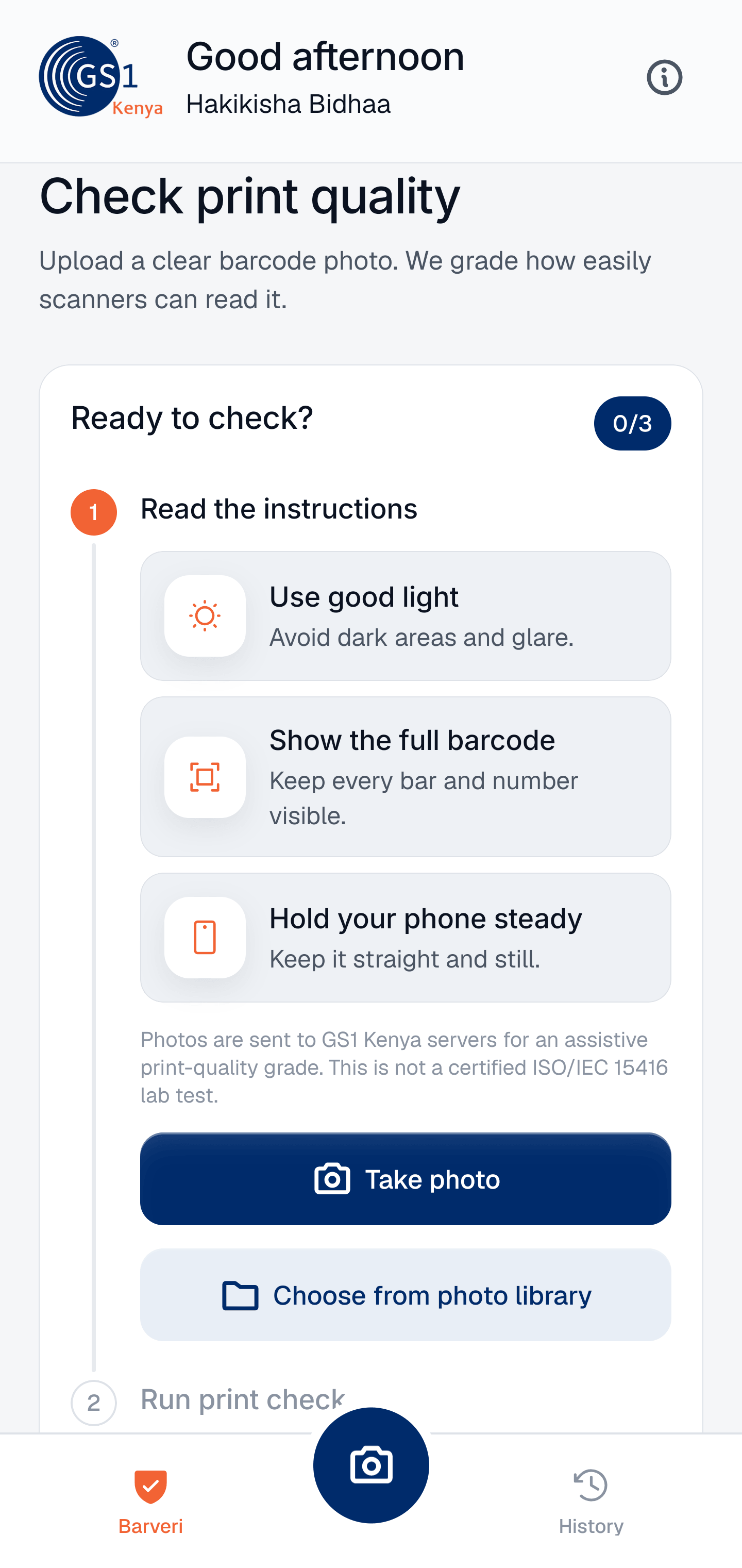
Members check print quality from a still photo. The screen is three steps: read the instructions, run the print check, then view the result. The instructions are the failures we kept seeing. Poor light, a cropped symbol, a phone that moves. Each one is a short card. Under them, a line says the grade is assistive. It is not a certified ISO/IEC 15416 lab test.
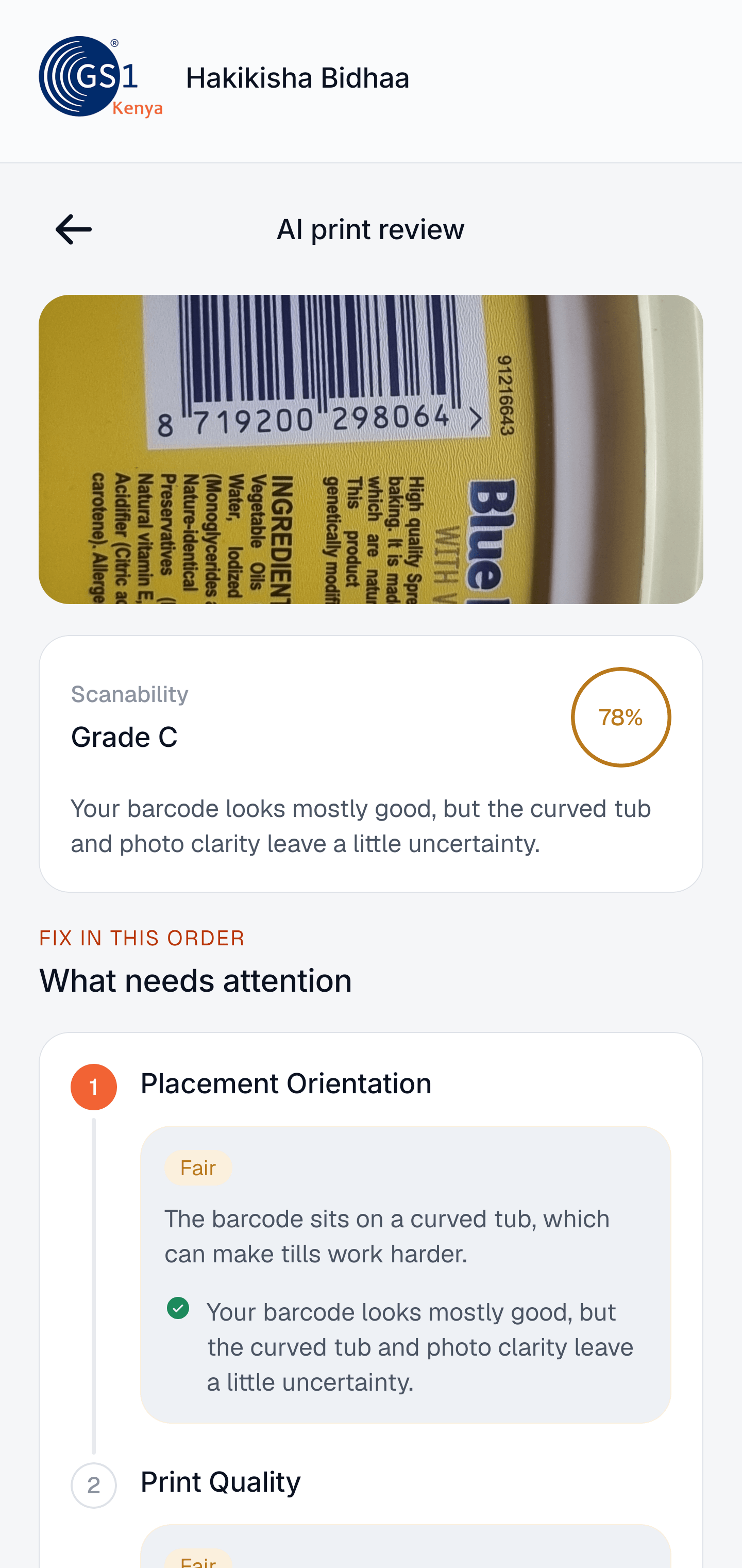
The photo uploads, and the registry lookup can show as soon as a code is readable. The slower print grade fills in under it. The report opens with a letter grade and a scanability score. Anything only fair or poor is listed under what needs attention, in the order to fix it: symbol contrast, print defects, quiet zone, then colour against the pack. Checks that passed stay collapsed, so a good print doesn't hide the one thing that will fail at the till.
What the phone can read offline
Healthcare and traceability codes carry more than a product number. The scanner parses GS1 element strings on the device, including Data Matrix, GS1-128, and a Digital Link URL. It can show the GTIN, expiry, batch, and serial with no network. The catalogue lookup still needs a connection. The data printed on the pack does not.
The interface
The colours stay inside GS1 Kenya's own set. Navy (#002B6B) is for buttons and the wordmark. Orange (#F26334) is the accent, on the lookup action and on warnings. The canvas is a cool grey (#F5F6F8), so the product photo and the barcode photo stay the loudest things on screen.
Type is two families and two weights. Inter for titles, Geist for everything else. We don't set a font weight in the interface. Each role is its own font file, so the hierarchy holds when someone turns the text size up. Motion is short, around 200 to 280ms, and the press state fires when the finger goes down.